
Incidents and on‑call,
in your pocket.
The Kitomer iPhone app is the responder’s side of Kitomer. See what is down, acknowledge, move an incident along, and know who is on call, from the app or a Home Screen widget.
Signs in with your Kitomer account. Same organizations, roles, and data as the portal.
Everything that is up, and what isn’t
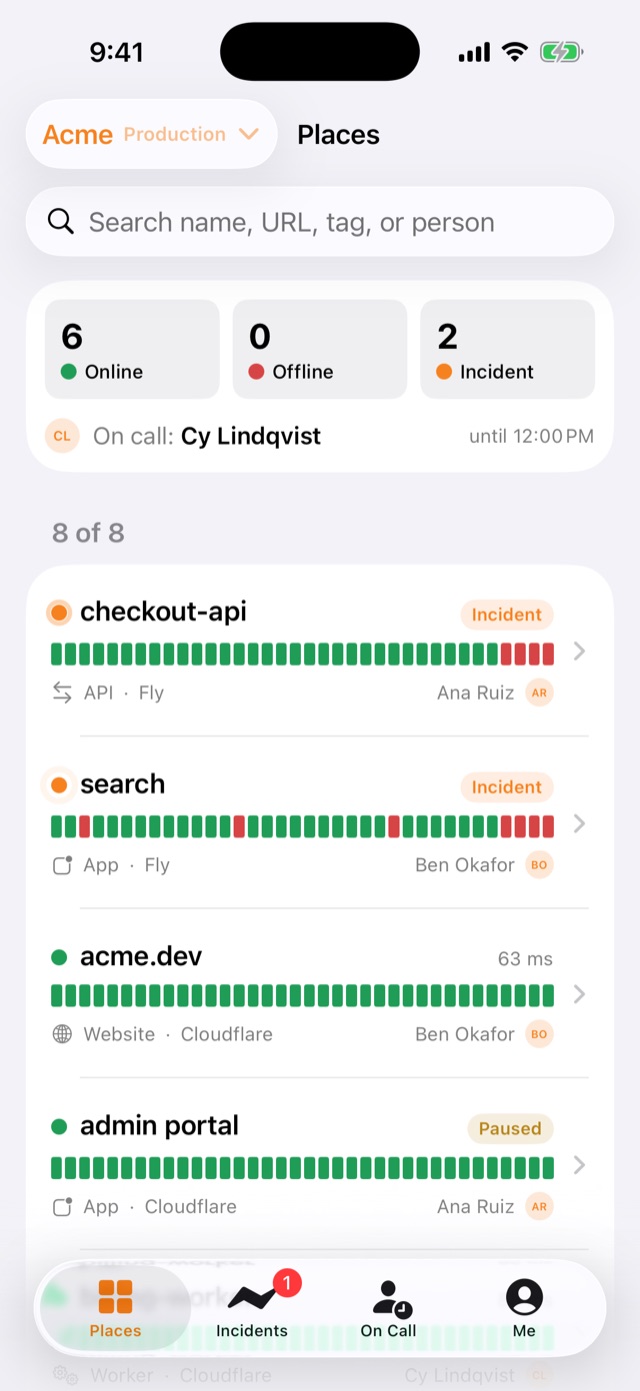
Every place in the environment, with incidents first, then offline places. The bar on each row is the last 24 hours of heartbeats.
- Online, Offline, and Incident tiles with counts. Tap one to show only those places.
- Who is on call on the default schedule, and until when, above the list.
- Search by name, URL, tag, or the responsible person.
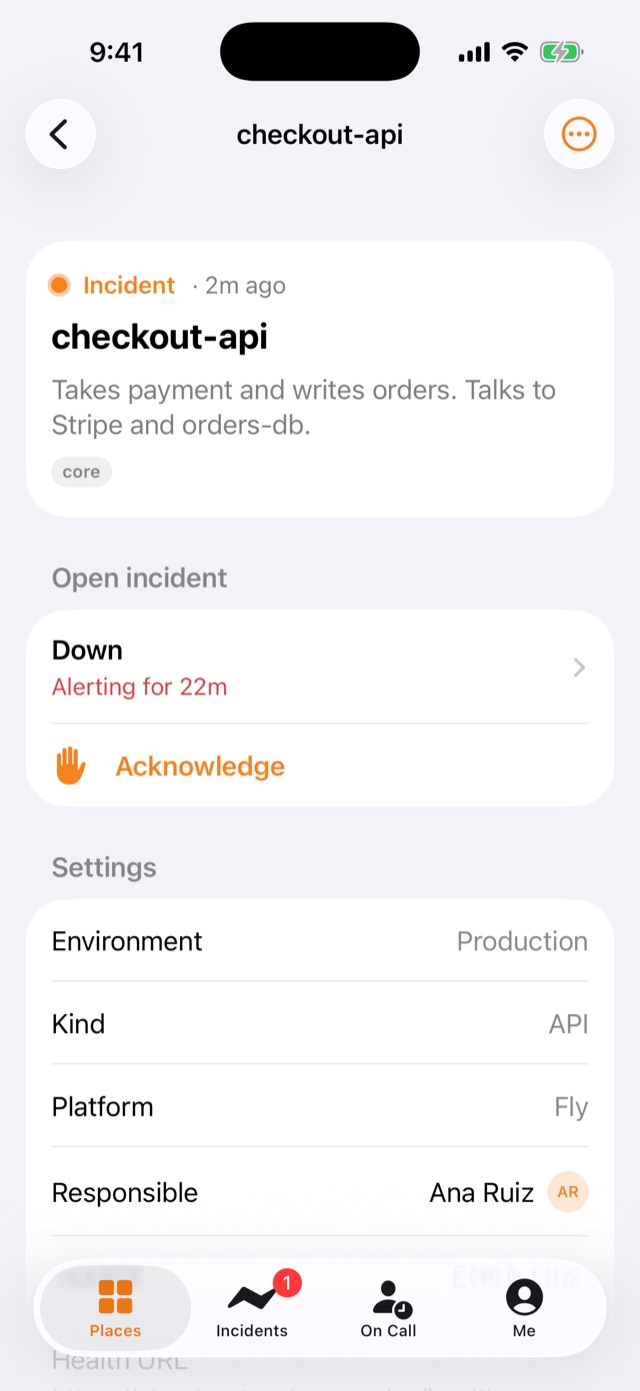
- A place in full: status, last check, the last 12 checks with HTTP status and latency, and notes. Members add notes; admins run a check now.
Acknowledge, and move it along
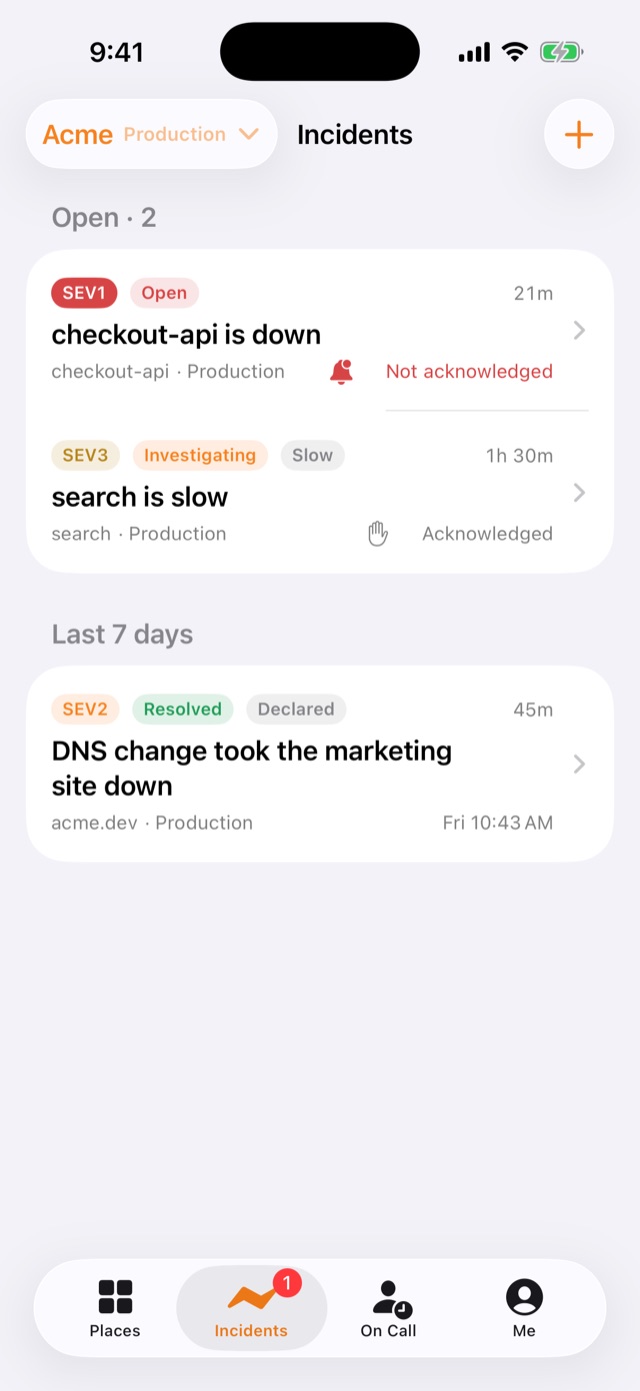
Open incidents come first, unacknowledged before acknowledged, then by severity. The Incidents tab badge counts the ones nobody has acknowledged.
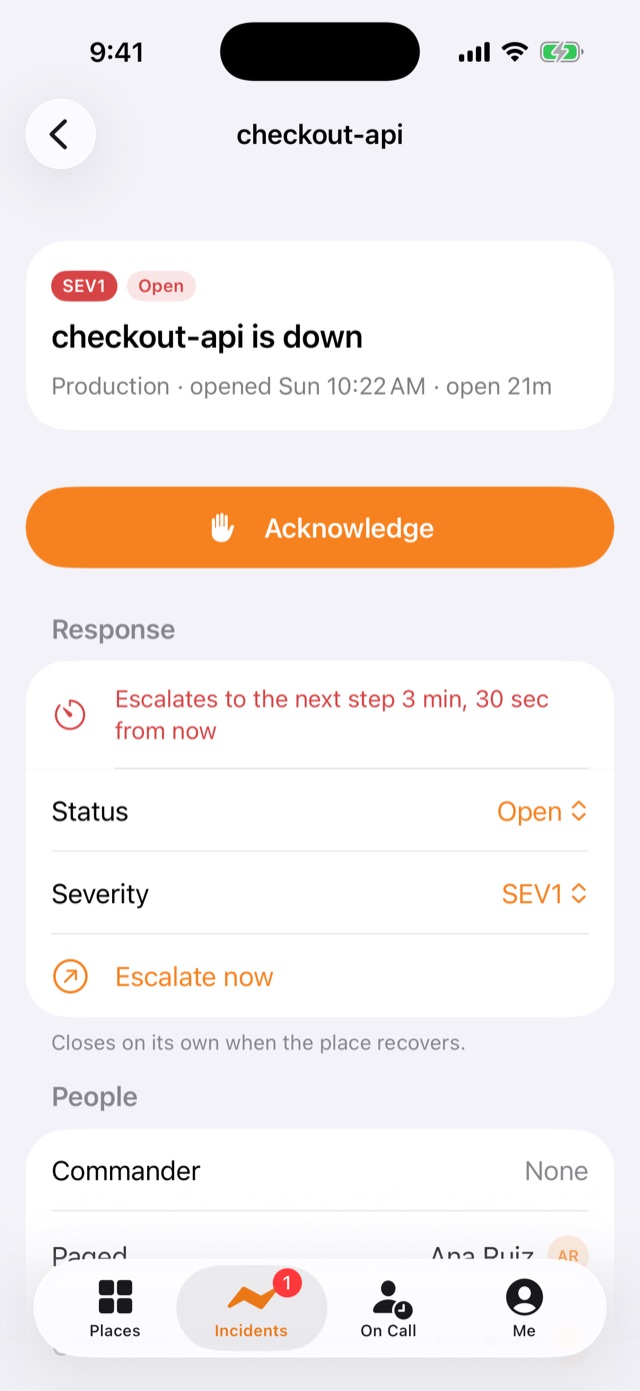
- Acknowledge with the big button, or swipe a row to the right. It stops escalation and leaves the incident open.
- A countdown to the next escalation step until someone has it.
- Status and severity: Open, Investigating, Monitoring, Resolved; SEV1 to SEV4. Resolve, escalate now, or reopen.
- Declare from the + button: place, summary, severity, and whether to page on-call now.
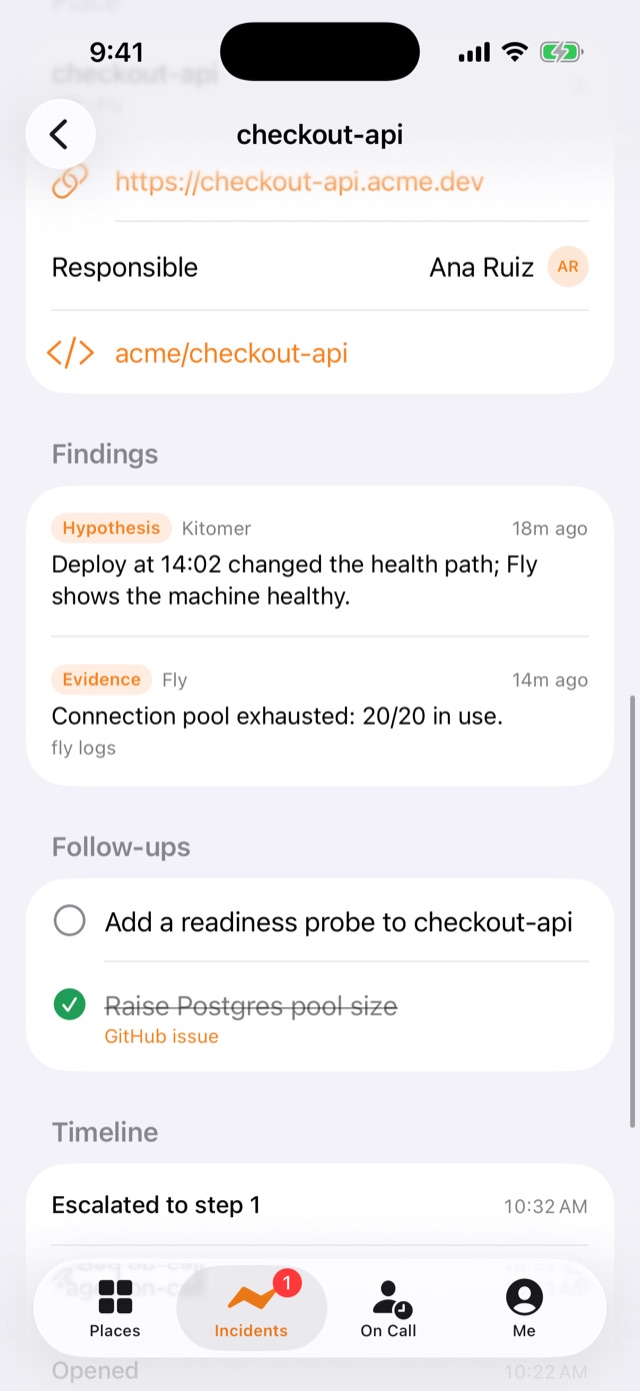
Findings, follow-ups, and the timeline
Everything the portal and your AI have written on the incident, readable on the phone.
- Findings with their kind, source, and citation, and the write-up.
- Tick follow-ups done or not done, and open their GitHub issues.
- People and timing: commander, who was paged, responders, MTTA, MTTR, and how many deliveries went out.
- Live. An open incident reloads every 20 seconds, so a teammate’s acknowledge appears without pulling down.
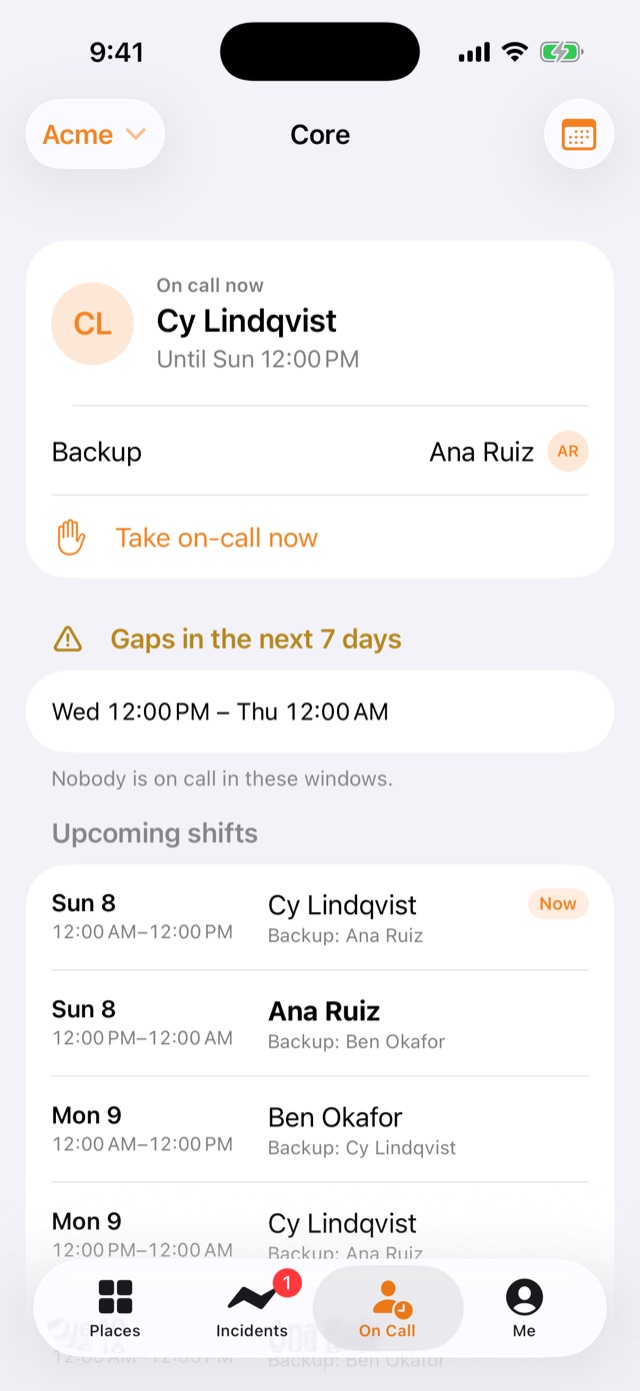
Know who is on call, and when you are
The principal with their photo and until when, and the backup. It says “You’re on call” when it is you, and warns when nobody is.
- Gaps in the next 7 days, listed above the shifts.
- The next 10 shifts in the schedule’s timezone, yours in bold, with overrides.
- Take on-call now for 1, 2, 4, or 8 hours, without changing the pattern.
- Switch schedules when your organization has more than one team.
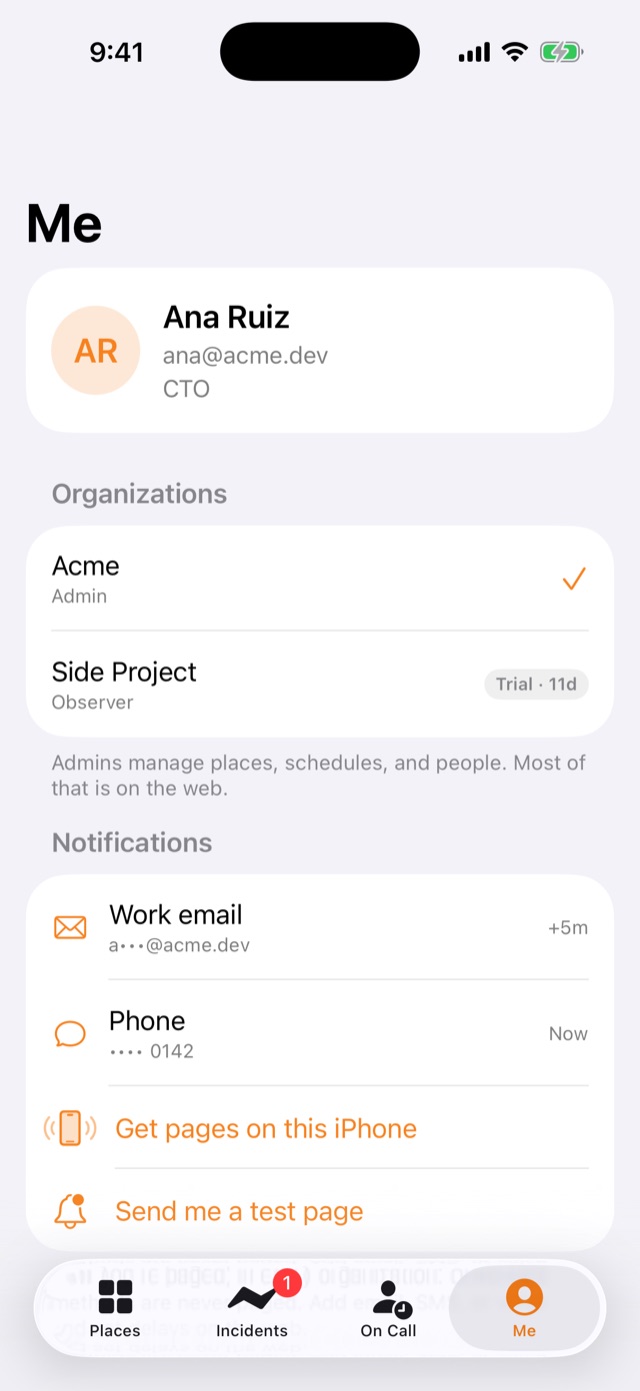
Your organizations and how you get paged
Switch organization and environment from the top of any tab or from Me. The app remembers the last one you used.
- Your contact methods across every organization, with each one’s paging delay.
- Add this iPhone as a contact method for pages.
- Send me a test page to every verified method, and see how many went out.
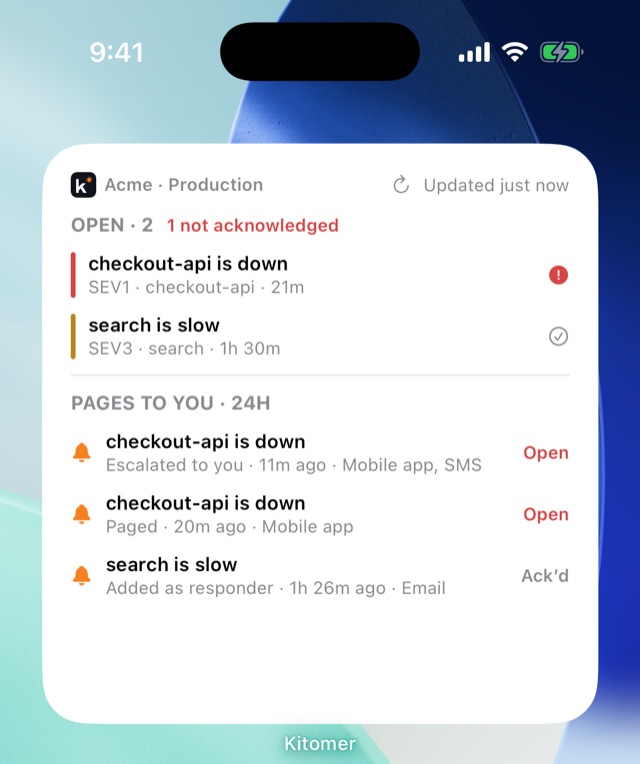
Open incidents on your Home Screen
How many incidents are open and how many nobody has acknowledged, in red, plus the pages sent to you in the last 24 hours.
- Small, medium, and large on the Home Screen; circle, rectangle, and inline on the Lock Screen.
- Pages to you, across your organizations: Paged, Escalated to you, Added as responder, Reminder, or Test page.
- Tap an incident to open it in the app, switching organization first if it needs to.
- Keeps itself current, and when it can’t reach Kitomer it shows the last saved data and when that was.
The rest is on the web
Building the map, connecting accounts, and running the organization stay in the portal at kitomer.app. Screens in the app link there where it helps.
- Create an account and an organization on the web first, then sign in on your iPhone.
- On the web: the map, coverage, SBOM, insights, integrations, AI Connections, organization settings, members, and plans.
- Also on the web: editing places, schedule patterns, escalation and alert policies, and adding or verifying email, SMS, and voice.

Kitomer for iPhone is coming soon
Kitomer is on its way to the App Store. Until then, everything here is in the portal.